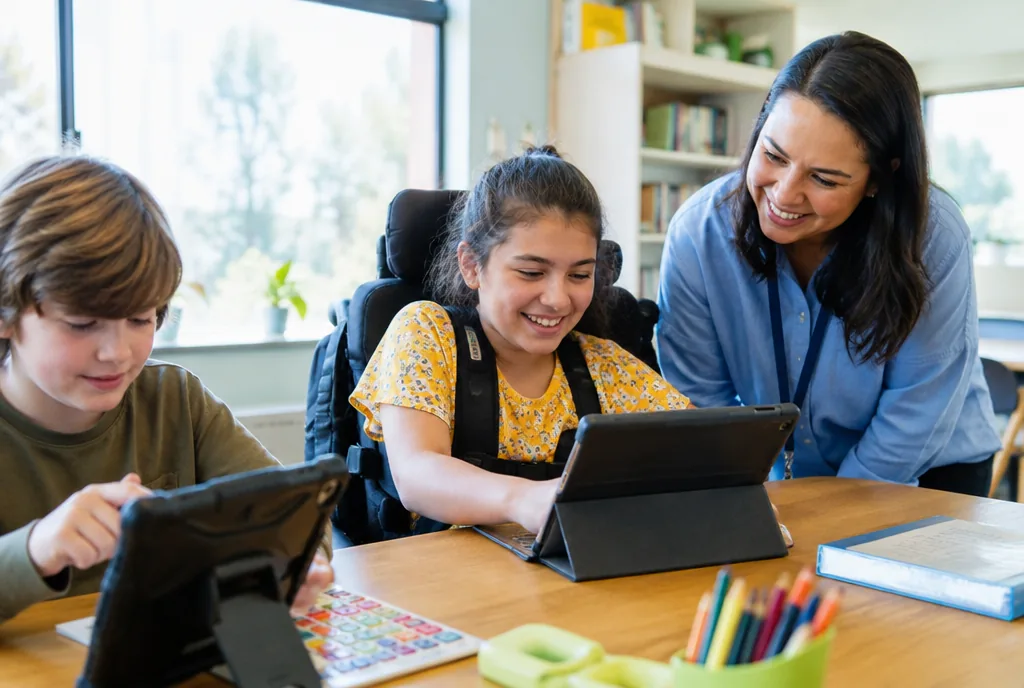
Assistive technology examples for students range from a binder clip under $5 that holds a worksheet in place to a speech-generating device controlled with eye movement. The common thread is not the price or the screen: assistive technology is a tool chosen to increase, maintain, or improve a child’s functional capabilities. Whether you are a parent or a teacher, the useful question is simple: which school task is getting in your student’s way, and what specific support could change it?
What assistive technology means for a student
Under the Individuals with Disabilities Education Act (IDEA), an assistive technology device can be any item, piece of equipment, or product system that is bought off the shelf, modified, or customized for a child with a disability. A pencil grip, a digital recorder, and a tablet can all qualify. The definition does not include a medical device that is surgically implanted; a cochlear implant may be assistive technology, while the surgical implantation itself is not.
Assistive technology is different from accessible technology. A high-contrast display is designed to help many users. An AT device or support is selected for one student because it addresses that student’s barrier. That distinction keeps your conversation focused: not “What is the fanciest tool?” but “What will let my student read, write, communicate, hear, move through a routine, or show knowledge more independently?”
Devices are only one part of the picture. IDEA also defines an assistive technology service: help with evaluating, acquiring, customizing, maintaining, or using a device, as well as training. If your student receives a communication device but no one around them knows how to support its use, your student has not received the full practical support that AT can involve.
Start with low-tech tools that solve a visible barrier
Low-tech assistive technology does not need electricity or a battery. It is often the fastest place for you to begin because the tool can sit right at the point of difficulty: on the desk, beside a book, or in a student’s hand. These supports are not “less real” than an app. Visual schedules, binder clips, putty balls, and sticky notes are all recognized examples of AT.
| School barrier | Low-tech assistive technology example | What it changes |
|---|---|---|
| A student loses the line while reading | Reading guide | A plastic strip reveals one line while covering surrounding words. |
| A student struggles to hold a pencil | Rubber pencil grip | The grip changes how the pencil sits in the hand. |
| Cutting activities are difficult | Modified scissors | The adapted tool can make classroom cutting tasks more manageable. |
| Worksheets feel visually crowded | Modified worksheet | Larger type, larger paper, or more space between questions changes the page. |
| Pages will not stay in position | Binder clip or page holder | The paper stays where the student needs it. |
| A routine is hard to follow | Visual schedule | Pictures or visual cues make the sequence visible. |
Picture a student in your class who knows the answers but repeatedly loses their place in a dense reading passage. A reading guide does not change the passage or lower the expectation. It exposes one line at a time and covers nearby words, targeting visual tracking. For another student, a worksheet with larger print and more room between questions may remove the page layout as a barrier before anyone considers a device.
Low-tech AAC can also be powerful. The Picture Exchange Communication System, or PECS, uses picture cards rather than a device. It was developed in 1985 by Andy Bondy and Lori Frost at the Delaware Autism Program. In Phase I, a learner physically exchanges a picture card for a desired item; by Phase VI, the program teaches commenting. The active exchange matters because the student initiates communication instead of only pointing to a picture.
Sensory supports can fit here as well. Seating cushions and other sensory materials are low-tech classroom supports for students with ADHD or sensory processing differences. Keep your trial concrete: use one support during one activity, notice whether it addresses the identified barrier, and share what worked across home and school rather than calling every preferred item AT.
Assistive technology examples: choose tools by the task
Mid-tech tools use batteries or power but do not rely on complex software. IDEA guidance includes calculators, audiobooks, and digital recording devices in this group. High-tech assistive technology includes computer-based tools with more sophisticated, customizable functions, such as tablets, screen readers, and speech-recognition software.
A digital recording pen offers a useful example of matching tool to task. It records a lecture and synchronizes the audio with handwritten notes. A student who has trouble with dysgraphia or working memory can write a brief cue during class, then return to that point in the recording later. The value is not simply that the pen records sound; it connects the sound to the student’s own notes.
Audiobooks are another mid-tech route to the same goal: access to text. Bookshare is a free ebook library for eligible U.S. students with documented print disabilities, including dyslexia, blindness, and cerebral palsy, and it offers more than 1.3 million titles. Check eligibility and the reading task first. Listening to a book can help your student access content when print itself is the barrier.
At the high-tech end, tablets, screen readers, and speech recognition can be customized around a student’s needs. Older students with executive function difficulties may use AI tools to break an assignment into time-based chunks when the teacher specifies how long the student can focus. That use is specific: the tool organizes the work into manageable time intervals, rather than replacing the learning goal.
Use text-to-speech and dictation to separate reading from writing
Text-to-speech reads text on a screen aloud. Speech-to-text, also called dictation, turns spoken words into text on the screen. Smartphones and tablets already include both capabilities, which makes them practical starting points when you are exploring whether your student needs reading or writing support.
The two tools solve different problems. During a science assignment, text-to-speech may help a student hear the directions and the passage while following the words on screen. When that same student has ideas for an answer but struggles with handwriting or typing, speech-to-text can capture spoken words as editable text. Using both does not mean that every assignment should work the same way; it means the support follows the barrier in that task.
Screen readers provide another route to on-screen information. In the WebAIM Screen Reader Survey #10, JAWS was reported as the primary screen reader by 40.5% of respondents, NVDA by 37.7%, and VoiceOver by 9.7%. NVDA is open source, while JAWS is paid software. Those differences are worth knowing when you compare options, but a feature list cannot substitute for trying the tool with your student’s actual materials.
For a student who benefits from a dedicated literacy program, Kurzweil 3000 combines text-to-speech, speech-to-text, and word recognition in more than 70 languages. It also offers natural voices in 13 languages and 18 dialects, an OpenDyslexic font option, and connections to Google Classroom and Bookshare. Your question remains practical: does a particular feature help your student access or produce the work required that day?
Give communication more than one pathway with AAC devices
Augmentative and alternative communication, or AAC, includes methods that supplement speech and methods that replace it. The range runs from picture boards and PECS cards to speech-generating devices. AAC is not one product category; it is a way to make communication possible when spoken language alone does not meet a student’s needs.
For a student who can use touch, a speech-generating device may provide words and phrases through a touchscreen. For someone with limited motor control, an eye-tracking device can allow communication through eye movement. The Tobii Dynavox TD I-Series, including the TD I-13 and TD I-16, is designed for communication by eye movement and is used by people with conditions including cerebral palsy and Rett syndrome.
Plan for use in real settings, not just a single therapy activity, so your student can communicate wherever it matters. A picture board can offer a way to ask for help during independent work. A speech-generating device can be relevant in a small group, at lunch, and at home. If an electronic device needs charging or service, a low-tech communication option such as picture cards gives the student another pathway while the device is unavailable.
Bring the teacher’s voice closer with hearing assistive technology
Hearing assistive technology, often called HATS, includes FM systems, infrared systems, induction loop systems, and personal amplifiers. These tools transmit a speaker’s voice more directly to the listener, addressing the classroom challenges of distance and room reverberation. Hearing aids themselves are also assistive technology; behind-the-ear, or BTE, hearing aids are the most common style worldwide and are especially recommended for young children because the earmold can be replaced as the ear grows.
- FM systems: The teacher wears a microphone and transmitter, while the student uses a receiver at the ear or with a hearing aid. The system works like a small radio link and can bridge distance and room echo.
- Infrared systems: Sound is converted to light waves and sent to a receiver. These systems work indoors, need line of sight, and can be disrupted by sunlight.
- Induction loops: A copper wire installed under carpet or in a ceiling creates an electromagnetic field. A hearing aid with a T-coil can receive the signal directly.
- Bluetooth systems: Sound can stream to Bluetooth-compatible hearing aids or to a smartphone or tablet used with earbuds.
FM systems are the most common HATS in classrooms for students with hearing loss, and their use has extended to children with minimal, unilateral, or fluctuating hearing loss. Before a lesson begins, you and other staff need to know the concrete routine: where the microphone is, whether the receiver is connected, and how the student will signal a problem. A system cannot reduce distance if the transmitter is left on a desk across the room.
Put assistive technology in the IEP and make it usable everywhere
At every IEP development, review, or revision, the IEP team must consider whether the child needs assistive technology devices and services. That duty applies to every student with an IEP, not only to students with sensory disabilities. You can begin the discussion with the task: reading a grade-level passage, writing an answer, communicating a need, following a schedule, or hearing instruction across a classroom.
If the team determines that AT is needed for a free appropriate public education, or FAPE, the public school must provide and fully fund the device or service at no cost to the family. The school may not delay implementation while waiting for outside funding. For a simple support such as a pencil grip or visual schedule, a separate AT evaluation is not automatically required before the team can provide it.
Your IEP conversation should also cover the conditions of use. When a student needs an AAC communication device, it must be available in all settings, not only in the classroom, including home and social settings. IDEA allows a school-purchased device to be used at home on a case-by-case basis when the IEP team decides that home use is necessary for FAPE. Ask the team to name the device or support, the relevant settings, and the service needed for training or maintenance so the plan describes use rather than merely ownership.
Four myths that can keep the right support out of reach
Myth: Assistive technology is always electronic
Visual schedules, binder clips, sticky notes, putty balls, pencil grips, and modified scissors can all be AT. A battery is not the test. The question is whether the item helps a particular student increase, maintain, or improve a functional capability.
Myth: AT is only for students who are blind, deaf, or non-speaking
Every IEP team must consider AT for every child with an IEP. Tools can support visual tracking, handwriting, reading, organization, sensory needs, communication, or listening—not just one disability category.
Myth: A formal AT evaluation must happen before any tool is provided
Many parents and teachers assume that an evaluation is required for every device. The IEP team can decide to provide a simple tool without a separate evaluation. More complex technology may require more planning, training, and customization, but a support your student needs should not be held back by a blanket rule.
Myth: Any accessible feature is automatically AT
Accessible technology is designed for broad use, such as high color contrast. Assistive technology is selected for an individual student with a disability. Both can be useful, but the distinction helps you and the IEP team identify what your student specifically needs.
Frequently Asked Questions
What are examples of assistive technology?
Examples include visual schedules, pencil grips, reading guides, modified scissors, audiobooks, digital recording pens, text-to-speech, speech-to-text, screen readers, AAC picture boards, speech-generating devices, hearing aids, and FM systems.
What is assistive technology?
IDEA defines it as an item, piece of equipment, or product system that is off the shelf, modified, or customized to increase, maintain, or improve a child with a disability’s functional capabilities. Services such as evaluation, training, maintenance, and customization can be part of AT too.
What is considered assistive technology in an IEP?
An IEP can address a low-tech support such as a reading guide, a tool such as text-to-speech or an AAC device, and the related service needed to use it. The team must consider AT at IEP development, review, and revision; if it is necessary for FAPE, the school provides it at no cost to your family.
What are examples of hearing assistive technology?
FM systems, infrared systems, induction loops, personal amplifiers, Bluetooth streaming systems, and hearing aids are examples. An FM system uses a teacher microphone and a student receiver to send the teacher’s voice directly to the student.
Does assistive technology have to be high-tech?
No. A visual schedule, binder clip, sticky note, or modified worksheet can be assistive technology when it is selected to address a student’s functional need. Start with your student’s barrier and the task, not with the technology level.